Gmail for Android - Email How-To Removal
This article lists the steps to remove your LSUS account from the Android Gmail app. For the steps to add your account back to your device, please see the following article: Email How-To
Perform the following steps to remove your email account on your Android device in Gmail:
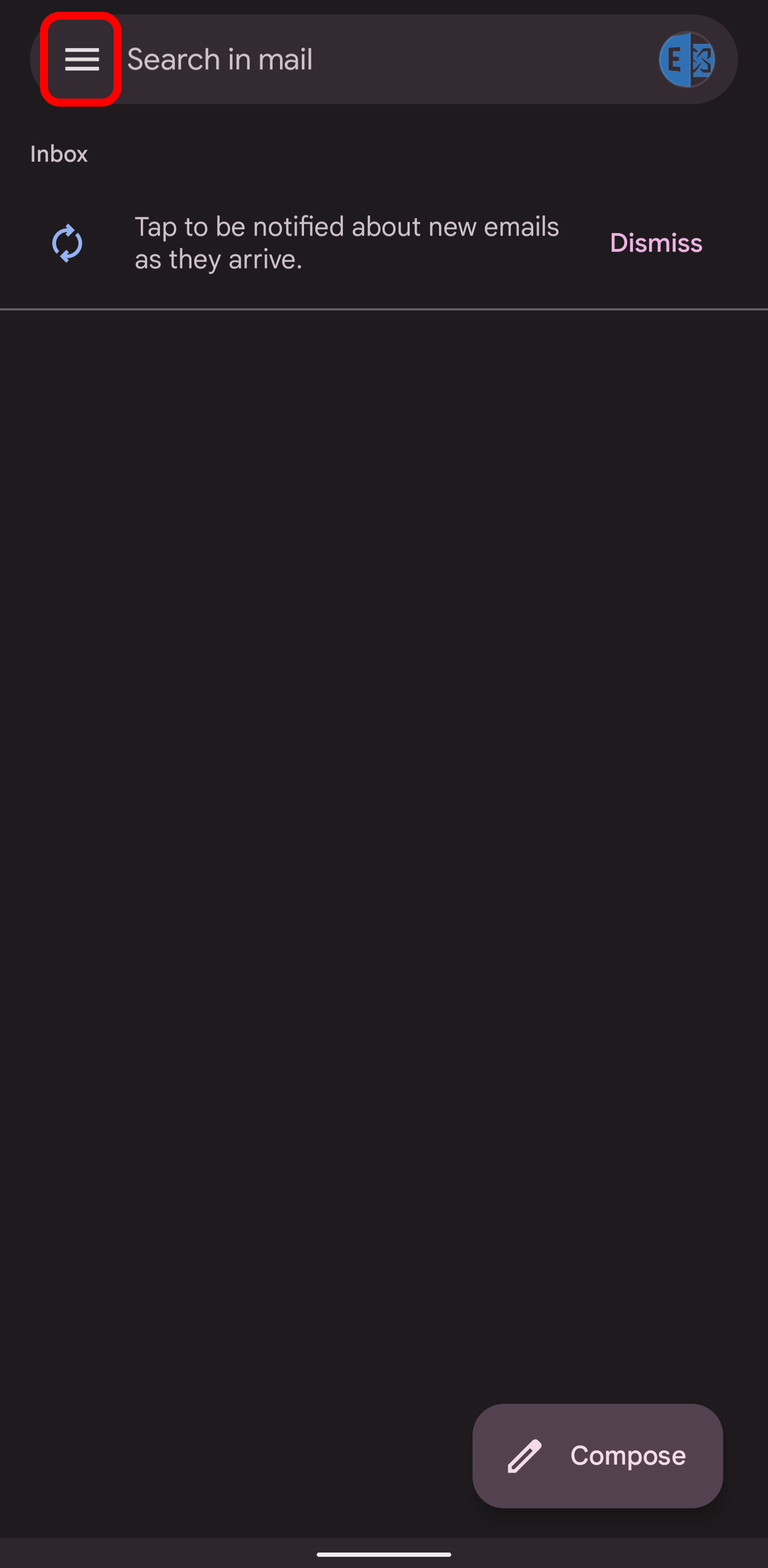
- Open "Gmail"
- Tap "
 " in the top left
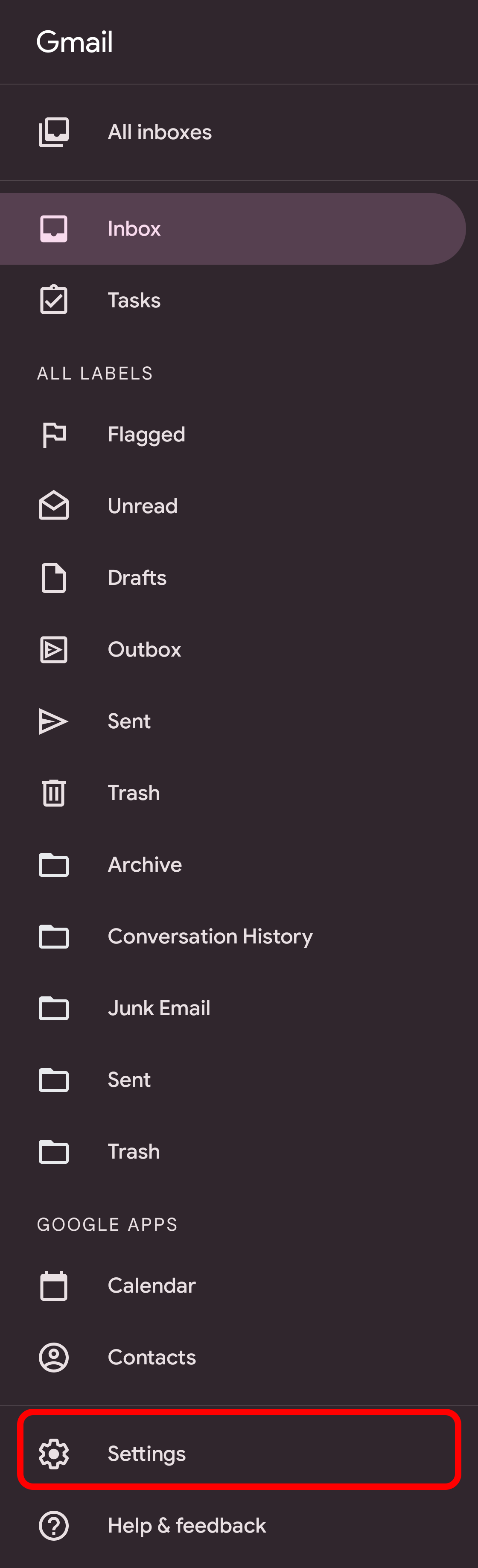
- Tap "Settings"
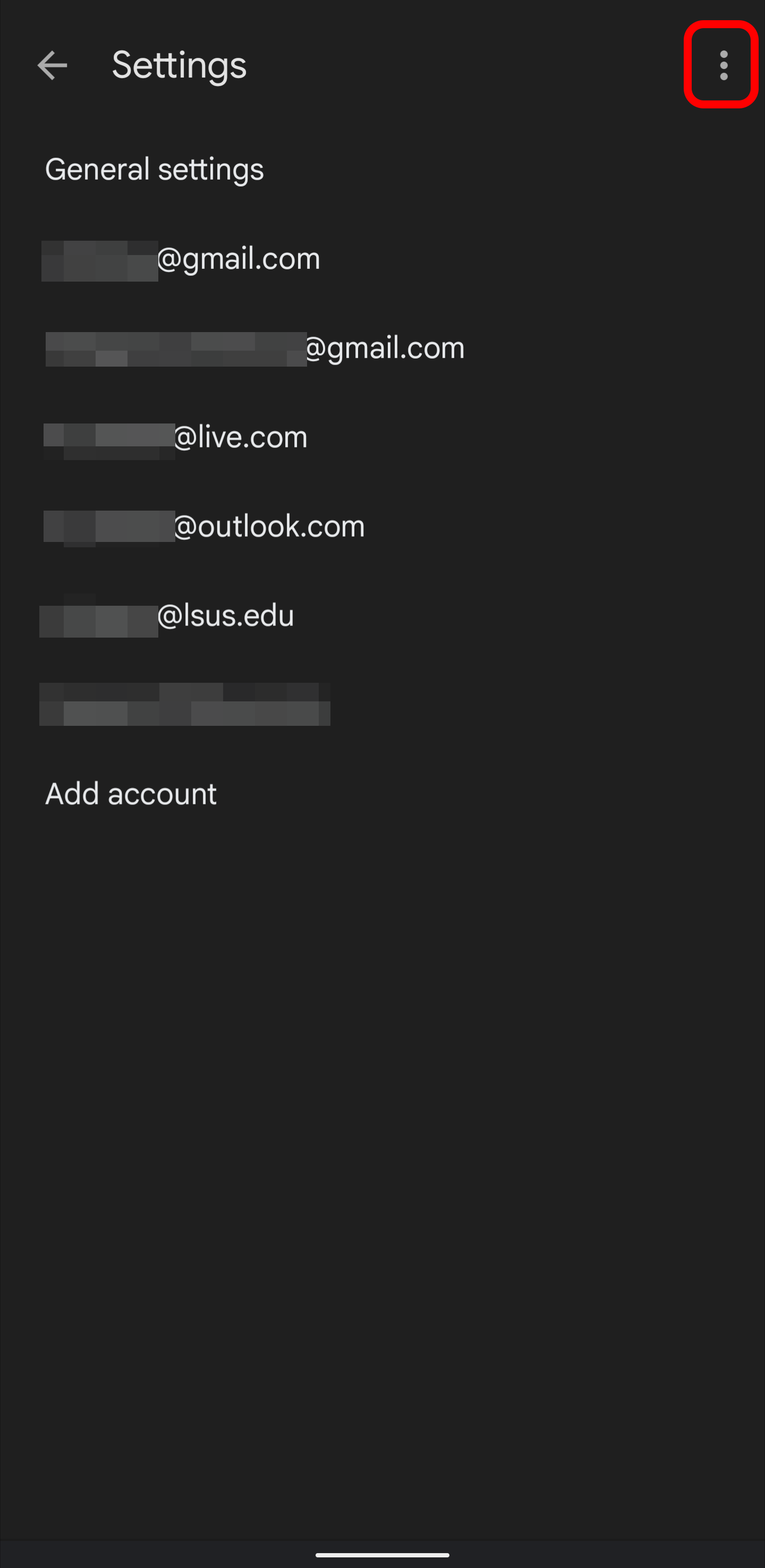
- Tap the three dots in the top right
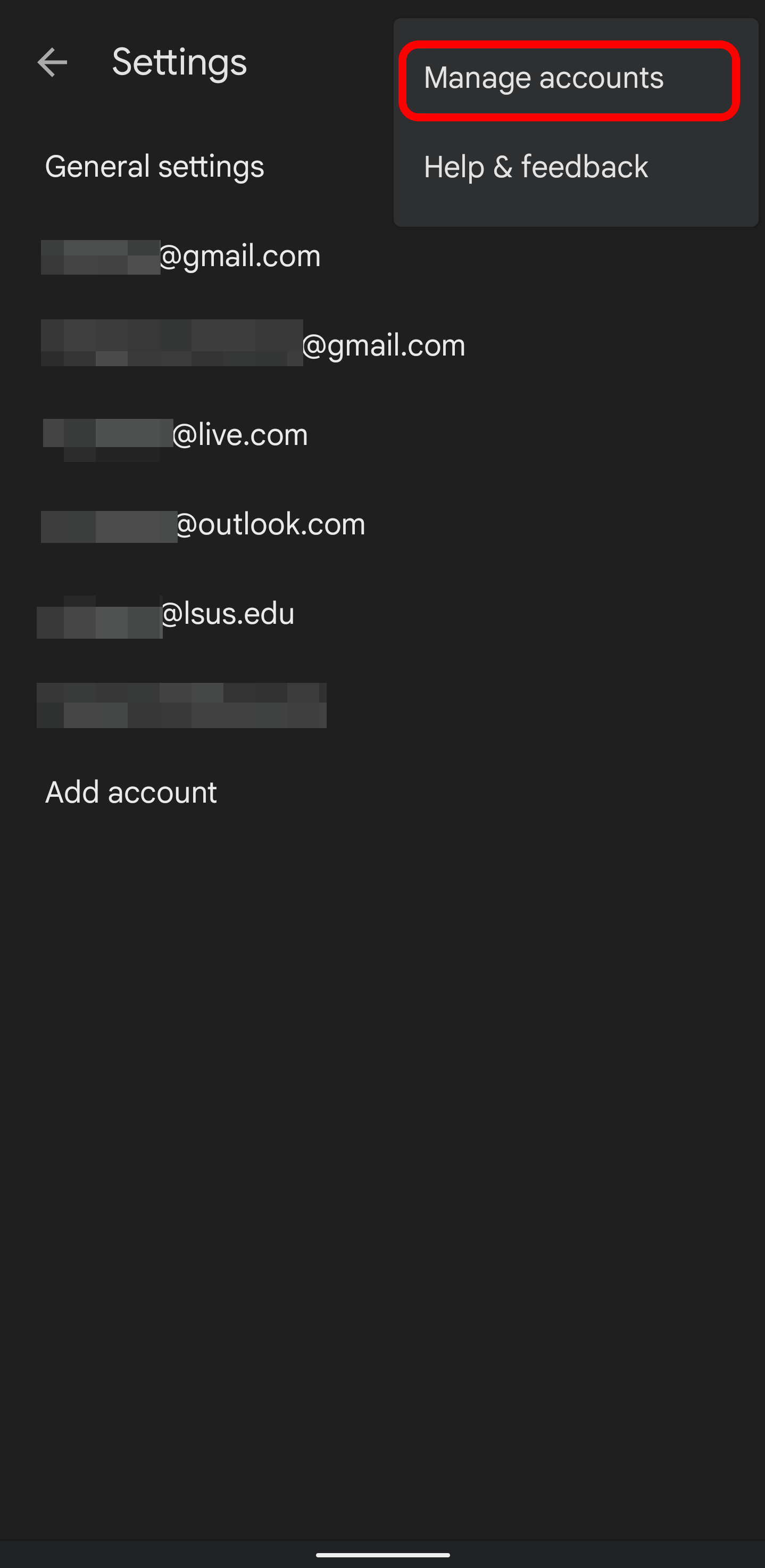
- Tap "Manage Accounts"
- Tap your "@lsus.edu" account
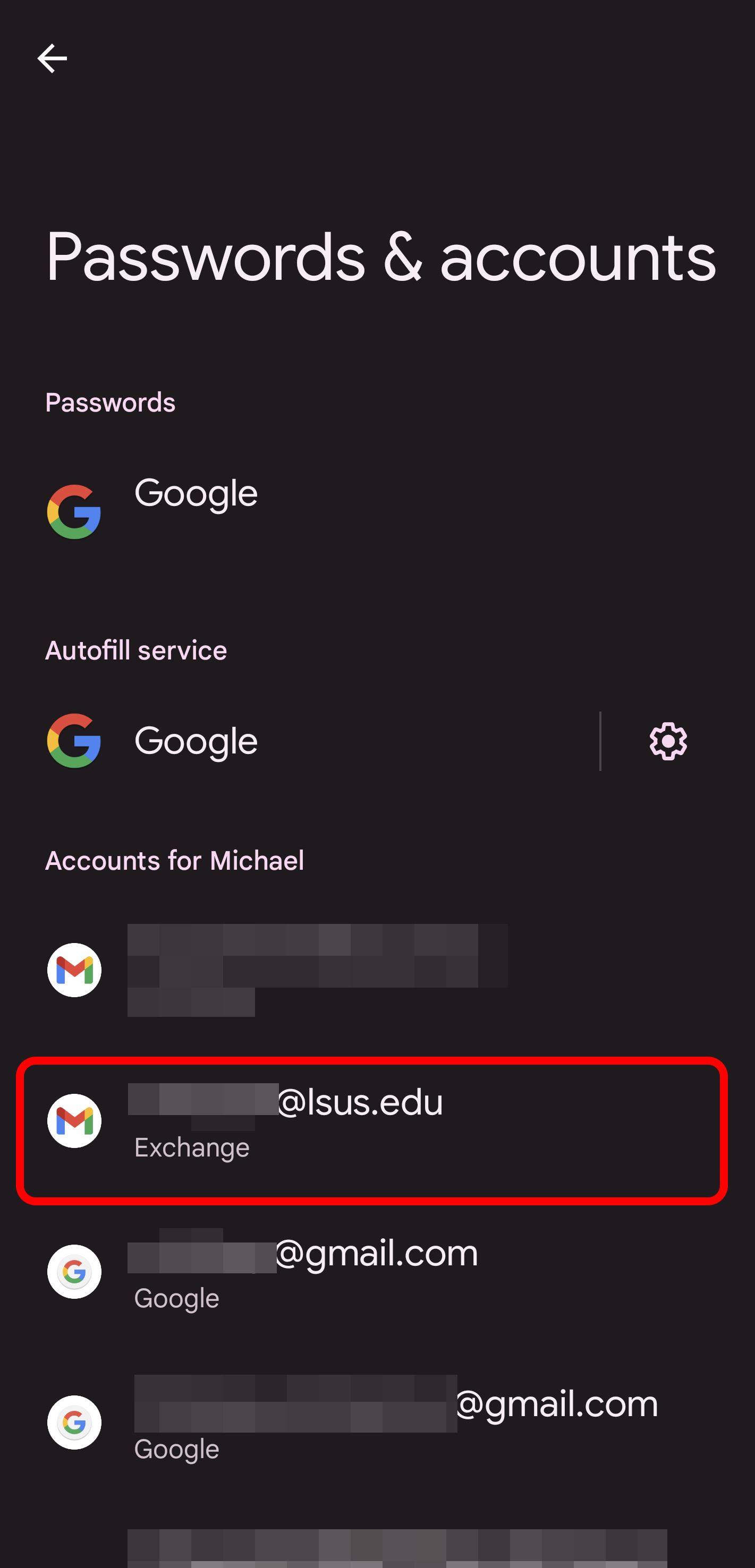
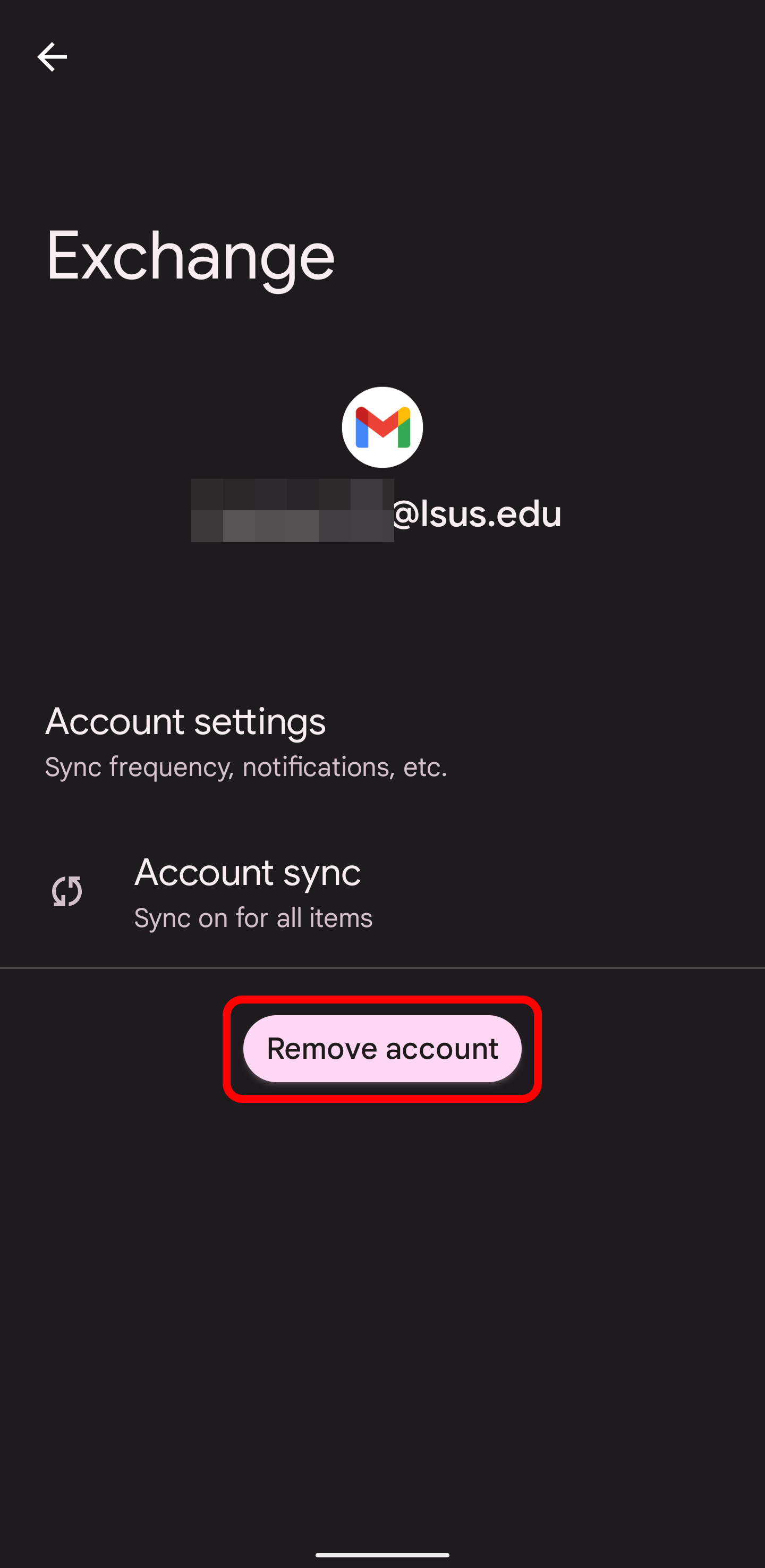
- Tap "Remove account".
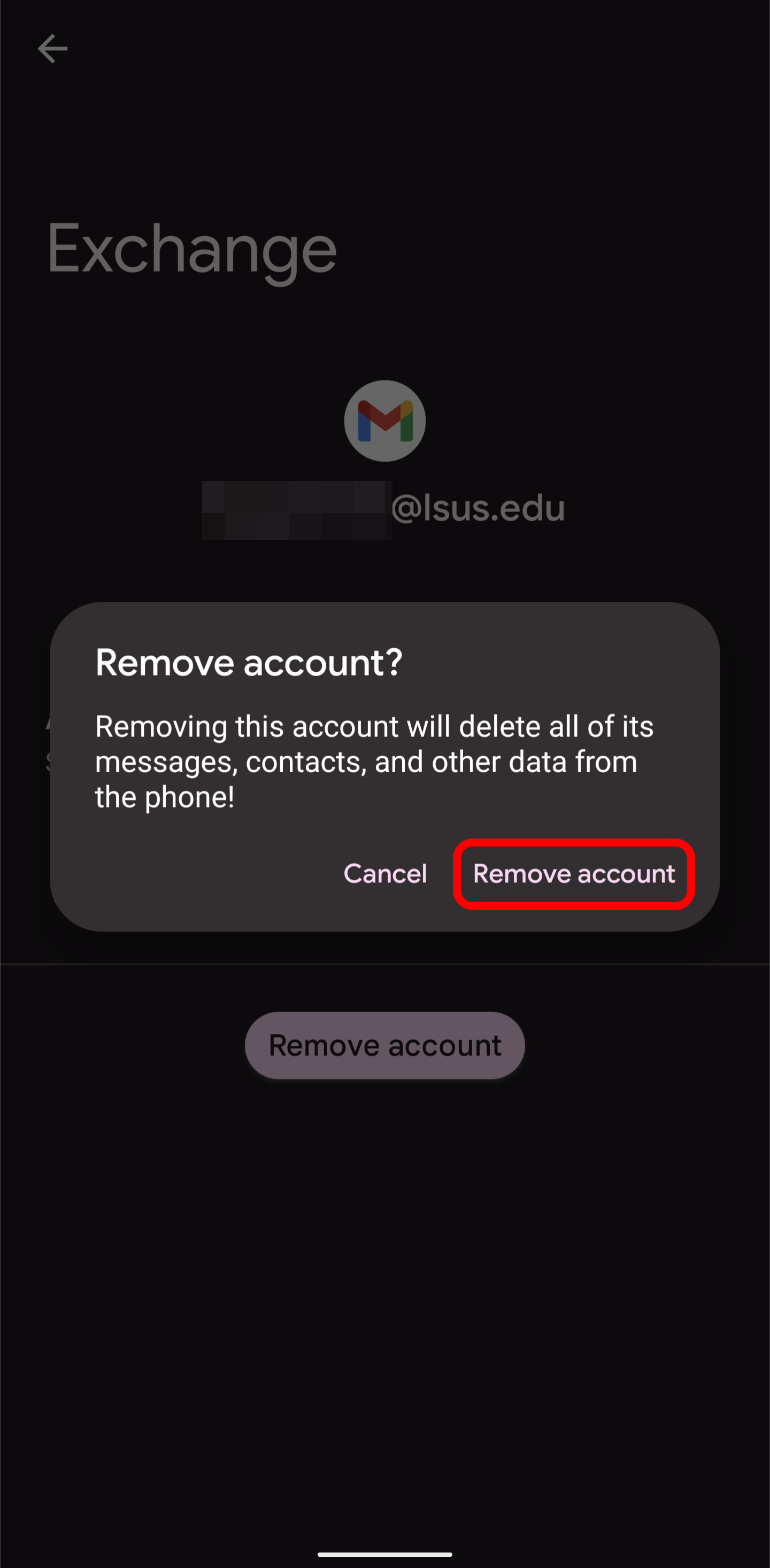
- You will be prompted to remove your account one last time.
Your email account should now be removed. If you need any assistance, please submit a ticket or call us at 318-797-5221.